Showing posts with label How To. Show all posts

Tuesday, June 6, 2017

How To Create Your Own Falling Matrix Effect In Windows PC

How To Create Your Own Falling Matrix Effect In Windows PC?
How To Create Your Own Falling Matrix Effect In Windows PC
Image Source: Pixabay


I think Everybody Loves the "Green Falling Effects" the visual effect of the falling binary code known as "Rain" in The Movie Named Matrix. Whenever I see the Matrix movie, I wonder how do the operator see objects through that "Green random code". 

I know how to create a similar screen with green random numbers falling. You can also create it very easily with a simple batch file. May be you want to create a falling matrix to impress your friends, Or maybe you want to record it and turn it into a sweet video intro, or a screensaver! 

Today I will show you how you can create falling Matrix effect. The falling matrix effect is extremely easy to do with simple Batch File in notepad , and the resulting Visual Effect is fantastic! So, here’s how to make the falling matrix code in notepad.

Step 1 : First open Notepad.

Step 2 : Copy the code below and paste it in your notepad.


Step 3 : Click on "File" and then select  "Save As" option. Now save your file with a ".bat" extension i.e like "Matrix.bat".

Step 4 : Now simply close the file and go to the location where you saved the file.

Step 5 : Run the "Matrix.bat" file that you saved, as an administrator.

Now, you will see Falling Matrix effect (random green code) being generated on the screen.


How to stop the Batch File code?

Just press ctrl +C while the program is running. This stops the program and asks you if you want to quit the program. Press Y to exit.


Description, Why this Happens?

Here we saved the file with a '.bat' extension which stands for "batch" file .When a batch file is run, the shell program which is usually a Command Prompt or cmd.exe reads the file and executes its commands line-by-line.

Here in the code we are just printing random numbers which are generated by the line %random which generates random numbers. By using a lot of random variables we are generating the scrolling effect. 


If your screen doesn’t get filled with code horizontally, just paste more of those  %random variables in the code.
The line color 02 tells the computer to select green color. As from RGB Where if you want Red color change code to 04, if you want blue color change it to 01.


So, by this way you can Create your own Falling Matrix Effect in Command Prompt in Windows PC. Create your own matrix effect and Enjoy. Do Comment below if You faces any problem and Do share with your friends and let them know too.

Monday, May 29, 2017

How To Access your Computer Remotely with Chrome.

How To Access your Computer Remotely with Chrome.

Image source: ShutterStock
To remotely access a computer over the internet, there are many applications available. Many of you might have already used applications like TeamViewer and helped your friends and family. VNC is another application that allows you to install a VNC server on a computer you wish to access remotely.
Most of us must be having Google Chrome browser installed on our computer. For remote access, you just need to install a Chrome browser extension named Chrome Remote Desktop, and then you are good to go.

Using Chrome Remote Desktop, which is a Chrome extension, you can easily access your computer remotely. You can do so via desktop PCs, laptops, or smartphones. It does not matter whether you’re using Windows or OS X, Linux, or Chromebook, all you need is the Chrome Remote Desktop extension. This extension can act as a great alternative to Team Viewer and VNC. 

What we need before using Chrome Remote Desktop for remotely accessing computer: 
1. To use Chrome Remote Desktop, you need to have a Google email account. 
2. The supported operating systems are Windows, Mac, Linux and Chromebook. 
3. We need to install the extension on both the computer which we want to be able to used remotely and any machines which we want to be able to use to dial in. Start with the machine you want to be able to control.

This is actually a large extension, weighing in at about 22.6 MB, but it will install very quickly nonetheless. Once installed, click New Tab and you can access the remote access tool from the list of installed apps. So, read thorough article to know about how you can use chrome to access PC remotely.


How To Remotely Access PC Using Chrome Remote Desktop:

Step 1: Download and Add Chrome Remote Desktop Extension, to your chrome browser. To do so, sign in into your Google Account. Now, on your Chrome web browser visit this link on Chrome App Store to get the Chrome Remote Desktop app.

Step 2: Launch the Chrome Remote Desktop app for remotely accessing your computer. Once the app will get installed, you’ll see the Add to Chrome button has changed to Launch App button. You can alternatively type the URL chrome://apps/ in your address bar and find the installed Chrome apps.
How To Access your Computer Remotely with Chrome.
Step 3: The first time you launch Chrome Remote Desktop, you’ll need to grant it permission to access your computer. Click Continue, make sure that you are signed into your Google account, and then click ‘Allow access’.

There are two Options to use this Chrome app — The first option is to allow someone else to access your PC, and the second option is for accessing your computer from anywhere. 
How To Access your Computer Remotely with Chrome.

Option 1: If you want to Access your computer Remotely, Click the ‘Get started’ button in the My Computers section. And then Click the ‘Enable remote connections’ button.

Option 2: If you want Remote Assistant to Share your screen remotely, Click ‘Get started’ button in Remote Assistace Section. And then click Share button.

Step 4: As a security measure, you will need to choose a PIN to protect your computer, so enter and confirm a code that is at least six digits in length and then click OK.
How To Access your Computer Remotely with Chrome.

Step 5: You will also need to permit the User Account Control dialog box that appears. Once this is done, re-enter your PIN and click Confirm, then OK.

Step 6: After entering the PIN, the remote access will be enabled.
How To Access your Computer Remotely with Chrome.

You can use a computer or Smartphones to access your files and applications over the Internet with Chrome Remote Desktop. For Users` Security all remote desktop sessions are fully encrypted.
To disable the remote access, you simply need to click on the Stop Sharing button.

You can Also use Chrome Remote Desktop on Linux OS, if you are using Chrome. All processes can be found on chrome support help page or you can go to this link.
On this page you will also find process of using Chrome Remote Desktop on your iPad, iPhone Mac and on your Chromebook. 


So, this post was on How To Access your Computer Remotely with Chrome. Hope you liked this article.Leave a comment below if you face any problem, and share with others and let them know too.

Source:google support page

Thursday, May 25, 2017

How to put Multiple OS in a single USB (MultiBoot USB)

How to put Multiple OS in a single USB (MultiBoot USB)

How to put Multiple OS in a single USB (MultiBoot USB)


Almost all operating systems made it very easy to put ISO files on USB drives by using various tools. For example, the Windows USB/DVD tool and the Startup Disk Creator in Ubuntu.

You can’t waste your each single USB drives for each single OS for creating a Bootable USB Drive. Now, there are many OS available in the market, either free or paid. Each having its multiple versions and features. It would be great if you put all the ISO files on one flash drive and take the advantage of installing multiple operating systems through a multiboot USB drive.

So, in this article, I am gonna tell you how you can put multiple OS in a single USB Drive and create a multiboot USB pendrive. Since most ISOs have heavy amount of size, your flash drive must be at least 16GB or 32GB capacity. Like, If you want to put three Windows ISOs in the multiboot USB disk, you will need a 16GB flash drive.

The process to create a multiboot USB drive is quite simple. For Windows OS, these multiboot USB drives can be created using a popular tool known as WinSetupFromUSB. It allows you put multiple OS ISOs in one USB drive. You can put Windows and Linux in a same bootable disk or create a master installation disk of Windows 7, Windows 8.1, and Windows 10. The choice is yours. So, Lets see How To Create Multiboot USB Drive.

How To Create Multiboot USB Drive:

Step 1: Download WinSetupFromUSB and Extract the software.
Step 2: Connect your USB drive to your computer.
Step 3: Open WinSetupFromUSB.(Open the 32 and 64-bit version according to your OS.) 
Step 4: Select your USB stick from the drop down menu. If the software doesn’t recognise your pen drive, press refresh.
Step 5: Tick Auto format it with FBinst. Remember you have to choose this option only during the first ISO installation.
How to put Multiple OS in a single USB (MultiBoot USB)

Step 6: Click Advanced options.

Step 7: Tick the Custom menu names for Vista/7/8/Server Source checkbox. Now exit Advanced Options.
How to put Multiple OS in a single USB (MultiBoot USB)
Step 8: Now you have the main screen of the tool, from here select the checkbox of the OS which you want to install on your USB drive. 
Note: If the size of your ISO is larger than 4 Gb, it will show a message to split the file into parts. This is because you’ve chosen the FAT32 option. Click OK.

Step 9: Click GO. A data deletion warning message will be displayed. This is because you’ve chosen to format the flash drive. Click Yes.
Step 10: The software will now format your pen drive and install the ISO that you have selected. The process will take few minutes to finish.


How to add the next OS in that USB Drive:

  • Start the WinSetupFromUSB tool again.
  • Select your flash drive in the drop down menu.
  • Click Advanced Options and look for Custom menu names for Vista/7/8/10/Server Source.
  • During second ISO installation, kindly uncheck Auto format with FBinst. Enabling this will remove your previous ISO file.
  • Click GO and follow the same process.
Note: WinSetupFromUSB doesn’t support different versions of  ISOs i.e. it can’t have 32-bit and 64bit version in a single USB drive. It will show an error message.

If you want to add more OS in your USB drive then Follow the same process to add ISOs to your USB Drive and to make your USB drive multiboot.

There are some more Softwares available which could help you to create Multiboot USB drive. The Methods of creating Multiboot from these Software are explained in details on their websites. You may also want to give a try to these softwares: 

  1. You can also use YUMI – Multiboot USB Creator to create Multiboot USB.
  2. Another tool for creating Multiboot USB Drive is XBOOT – Multiboot ISO USB Creator.
  3. One more software which is best known for creating Multiboot USB drives is SARDU – Multiboot USB Creator.


So, this was the method to create a Multiboot USB drive which will allows you to choose between multiple operating systems at a time of installing.
Hope you like this article. Comment below, if you faces any problem. Do share with others and let them know too.


Thursday, May 18, 2017

How To Install Windows OS In 10 minutes

How To Install Windows OS In 10 minutes.
How To Install Windows OS In 10 minutes

Installation of Windows OS takes lot of time. We all have to spend so much time when formatting our windows PC. We are obliged because of windows installation speed. But we can speed the installation of windows OS using simple commands. 

This Time, I will explain How to Install windows OS In Just 10 minutes. This is a simple tweak and some people know about it but many people still not aware of it. This tweak is extremely helpful for people who are still relying on that time of installation of windows OS.


As we all know that during formatting a Computer, after the file copying is completed, Windows require approximately 30-40 Minutes Time. But, from this tweak we can bypass windows installation time. 

If you are wondering how this is possible then read these simple steps.


How to Install windows in 10 Minutes?

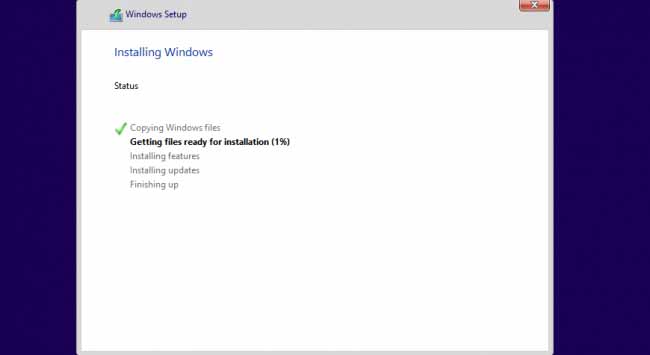
Step 1: Once the copying part is completed, as we all know in general windows Installation Procedure the system will restart.

Now when the system will be Restarted, the image like below will appear (In windows 10 screen will be appear as below image).
How To Install Windows OS In 10 minutes


Step 2: Now when this image appears, you have to press “Shift + F10 ” . This will open the command prompt. Now type taskmgr in it. This will open the Task manager.
How To Install Windows OS In 10 minutes


Step 3: After The task Manager Opens Go to Processes. And Find “Setup.exe” process and Right CLICK on It. and set the Priority to Realtime or Above Normal.


STEP 4: Now Just  Wait and Watch the Setup. It will take around 9 minutes and 2 minutes for Tolerance (depends on System).


So, When you Format or Install windows on your PC Next Time It will Really Save Your Time around 20 to 25 minutes.

That’s It.You Can Use this method in Windows xp,7, 8 And 10.
Hope you like this article. Comment below in Comment section if you encounter any problem. Share with others and let them know too.


Friday, May 12, 2017

How To Create Undeletable & Unrenamable Folder In Any Windows PC

How To Create Undeletable & Unrenamable Folder In Any Windows PC using CMD.
How To Create Undeletable & Unrenamable Folder In Any Windows PC

Today I am gonna tell you How To Create a Folder which no one can neither delete it nor rename it in Windows without any software. By this method of creating this type of folders, you can also secure your  important data in these folders. Almost every user wants to secure their data in the computer system.

You can also have fun with your friends. However, this trick is not only for fun but also you can protect your valuable data, there are many such situation occur at the time of using your own computer i.e, deleted all the folder and by mistakenly you deleted your valuable files, which hurts a lot.

Normal folders created by users on their Windows PC can be easily deleted or renamed. Most of Windows users are not aware that it is possible to create Undeletable and  Unrenamable folder in Windows without any software.

To know the trick to protect your valuable files then just follow the below steps that how can you create a folder that cannot be deleted or renamed. 
The method is very simple and easy, and you can easily do this with a little cmd trick. Just follow the below steps to proceed.

How To Create Undeletable And Unrenamable Folder.

Step1. Open Command Prompt. (Go to the Start Menu or Run Menu and type CMD or Press Windows Key + X and select Command Prompt.)
Always remember that you cannot create this type of folders in your root directory of storage. Which means these folders can’t be created on the drive in C drive because you have installed your Windows on C: Drive.
Step2. Open CMD and type E: or any other drive select the drive by typing D:, E:, F: and then hit enter.

Step3. Now type md con\ and Hit Enter. Here MD represents Make Directory. You may use other words such as aux, lpt1, lpt2, lpt3 up to lpt9 instead of  con in the above step.

How To Create Undeletable & Unrenamable Folder In Any Windows PC

You just created a new folder on E Drive. Open E drive and check it yourself. If You try to delete or rename the Con file in Windows, You will find that you can neither rename nor delete it.

Now put some folders or music files under con and again try to delete con folder you will find that you have created your own folder which cannot be renamed or deleted.


How To Delete/Remove Undeletable Folders ?

Now that you have created such undeletable and unrenamable folder but want to delete it for some reason. Follow the below steps and delete/rename such file.

Step1. Again open Command Prompt as Administrator.

Step2. Type D: or E: (the directory where you have created that folder) and hit enter.

Step3. Type rd con\ and hit enter. Here RD represents Remove Directory.
If you have used aux, lpt1, lpt2, lpt3 up to lpt9 instead of con just type that word.
Open the Windows Explorer and you will find that you have deleted Con folder.

How To Create Undeletable & Unrenamable Folder In Any Windows PC

The reason why this type of folders cannot be deleted or renamed because, the name con, aux, lpt1, lpt2, lpt3 up to lpt9 represent the internal devices of the operating system and hence we cannot create folders with this name, also to note; we can only create this name folder through Command Prompt.
And because of internal device folder we cannot delete this folder.The only way to create or remove this type of folders is CMD.


So above was all about How To Create and Delete Undeletable and Unrenamable and Folders in Windows PC using CMD. So try out this method and have fun. 

Hope you like the method, do Comment if you are facing any problem and Share with others too.

Friday, March 31, 2017

How to Create Keyboard Shortcut to Open any Software.

How to Create Keyboard Shortcut to Open any Software in Windows.
http://tecube.blogspot.com/2017/03/how-to-create-keyboard-shortcut-to-open.html
Image Credit: HP

Creating a custom keyboard Shortcuts can save valuable time for you and for your work when you use various Windows apps and software on a regular basis.
Keyboard shortcuts in Microsoft Windows, in fact, on every operating system, have made our lives easier. If there wouldn’t have been these helpful key combinations, then we would have to follow longer paths to do various tasks.

If you use some Windows software more frequent than others then you can create custom keyboard shortcuts for those Software in Microsoft Windows.Even if you have saved your favorite apps on the Desktop, using keyboard shortcuts is much easier and faster because you don’t have to visit the desktop every time to open your desired software.

So, today in this post I'll sow you How You can set Custom Windows Keyboard Shortcut in Microsoft Windows  to open any software and apps by just some key combinations and save your valuable time.  

Microsoft  provides its users' the functionality to set custom Windows keyboard shortcuts which can be used to open individual apps and software in Windows. This relieves us from the hard work required to follow the long path to execute i.e. open the start menu, find the app, and then open it.

 So, Let's see How to do it:

How to create custom keyboard shortcuts to open any software in Windows:

It’s quite simple to set a custom keyboard shortcut to open a particular app or software in any version of Windows. Just Follow the simple Steps to Enable custom keyboard shortcuts:

Step1: Choose any shortcut file of software for which you want to open with keyboard shortcut. (Here I am gonna show you with Shortcut of VLC Media Player.)

Step2: Right-click the Software's shortcut file for which you want to create the custom shortcut.


Step3: Click Properties.

Step4: Under the Shortcuts tab, click the Shortcuts Key field.

http://tecube.blogspot.com/2017/03/how-to-create-keyboard-shortcut-to-open.html

Step5: Type any alphabet, Symbol, or Numpad key according to your choice.
Windows will set the custom shortcut for the app according to the key you’ve chosen. 
e.g.: If you use the letter V for VlC media Player, then the shortcut will become CTRL+ALT+V.

See below Image how your Shortcut will assign:

http://tecube.blogspot.com/2017/03/how-to-create-keyboard-shortcut-to-open.html

Step6: Click Apply and click Ok.

Now, you can open VLC Media Player directly by pressing the keyboard shortcut (ctrl+alt+v). 
This method works only for shortcut files.You can’t use the characters which activates  using the shift key, i.e., the !, @, #, $, etc.
Tip :- The /,*,-,+ keys that are part of the Numpad can work without pressing CTRL+ALT. So, if you set one these keys as the keyboard shortcut, you can launch a particular Software by pressing that key alone.

Later, if you want to remove the custom Windows keyboard shortcut, follow the above method till Step 4 and press the Backspace key in the Shortcuts field.This will cleaar the shortcut key field.


So, what you will do if you want to use keyboard Shortcut for Windows apps that are present in Windows 8, 8.1 and 10?
Windows apps doesn’t have a shortcut, but you can create one.


Create shortcut file for Windows apps.

You can also create custom Windows keyboard shortcuts for the modern Windows apps present on the Windows 8, 8.1, and 10. 
Here are the steps to create a shortcut file for modern apps:

Step1: Open Start Menu in Windows.

Step2: Navigate to any modern app for which you want to create a shortcut file.

Step3: Click and drag the app to the desktop. Here I am showing you Microsoft Solitaire Collection Game app.Windows will automatically create a shortcut file for the modern app.

http://tecube.blogspot.com/2017/03/how-to-create-keyboard-shortcut-to-open.html

Step4: Now, you can go to the properties and set a custom keyboard shortcut for the app. Just like We did for software shortcut file. Here I inserted Letter 'M' for Microsoft Solitaire Collection Game. You can see below Image:

http://tecube.blogspot.com/2017/03/how-to-create-keyboard-shortcut-to-open.html

Step5: Now Click Apply and click Ok.
Now whenever you press this shortcut your Microsoft Solitaire game will open, without going to start menu and app section.


Did you like this post? 
Do comment if you faces any problem and share with others and let them know too this awesome feature of windows.

Thursday, March 30, 2017

Remote Screen Sharing Without any Software in Windows

Remote Screen Share Without any Software in Windows.
http://tecube.blogspot.com/2017/03/remote-screen-sharing-without-any.html

Remote sharing is nowadays on its peak, people use remote sharing to provide live support or for sharing screens. Most of us always use third party software’s for sharing or controlling remote systems using software’s like Teamviewer or Radmin etc. 

Today I am going to Show you  how to connect any two or more windows PC through remote Connection without using any third party Software. 

As we all knows Windows OS is  full of hidden programs that are only limited to developer or geeks. 

Today we are going to learn about two inbuilt software by Microsoft. One is MSRA (windows remote assistance) and another is Remote Desktop Connection. However remote Desktop Connection not available for home- premium users.

MSRA is windows inbuilt remote assistance program using which you can control remote pc’s, share remote screens, provide remote support and much more. Lets learn how to use MSRA for remote sharing.

So lets learn see how to share screens without any third party Software. 

Steps to Share or Control Remote PC using MSRA:


Step1. First of all click on startup and type command “MSRA” and press enter as shown below:

http://tecube.blogspot.com/2017/03/remote-screen-sharing-without-any.html

Step2. Now you will see screen like below having title “Windows Remote Assistance” , there are two options displayed:

  • Invite someone you trust to help you : Choose this option if you want to share your screen with someone.
  • Help someone who invited you : Choose this option if you want to control someone others PC remotely.

Step3: Click on Option a “Invite someone you trust to help you” to share your screen:

http://tecube.blogspot.com/2017/03/remote-screen-sharing-without-any.html


Step4: Once you click the above option then you will see below panel with multiple options:

http://tecube.blogspot.com/2017/03/remote-screen-sharing-without-any.html

Here you can see three different options :
  1. Send this invitation as file : On clicking this option you can save the invitation file and send it to anyone from which you require help. After saving the file another window will open containing the password. You have to provide that password to person whom you want to connect to your machine.
  2. Use email to send an invitation: You can send invitation directly via email but it requires email client on your machine to send email like outlook etc.
  3. Use Easy connect: Another method to directly connect two PC is using Easy connect but this require some basic settings at your routers end i.e. If the computer has IPv6 disabled or is behind a NAT router that blocks Teredo traffic, the Easy Connect option will be unavailable.
Now once you have send the  remote assistance invitation file to user, he can connect to your PC by double clicking the invitation file and then entering the password.
Note: You need to enable remote assistance service.

Step5: Help someone who invited you : By clicking this option you can provide help to anyone who has done the above task. You will need two things : Invitation file and password to connect remote PC.


Did you know there is another smart option in that Tool by which you can directly connect to any PC using IP address? If not, well lets learn that too. 
Yup we can also provide windows remote assistance support using IP address too. Here are options.

1. First of all click on startup and type command “MSRA” and press enter.
2. Now you will see screen where two options are displayed, Select “Help someone who invited you”.
3. After that you will see some option, click on the bottom one “Advanced connection option for help desk” as shown below :

http://tecube.blogspot.com/2017/03/remote-screen-sharing-without-any.html


After clicking option you see below panel to enter IP address:

http://tecube.blogspot.com/2017/03/remote-screen-sharing-without-any.html

After entering IP address press Next to connect to IP address. That’s all.


Now the Second tool I am going to tell you about is Remote Desktop connection which is also used for remote connection and is inbuilt by Microsoft. However it is not available for home-premium user.

With Remote Desktop Connection, you can connect to a computer running Windows from another computer running Windows that's connected to the same network or to the Internet. For example, you can use all of your work computer's programs, files, and network resources from your home computer, and it's just like you're sitting in front of your computer at work.

So, To use this Tool, Follow Simple Steps Below:

Step.1: Go to Start and search for "Remote Desktop Connection". And you will find "Remote Desktop Connection in Search result. Open this tool.

http://tecube.blogspot.com/2017/03/remote-screen-sharing-without-any.html


Step2: Now Simply Enter IP address and user name of the remote computer and then connect. 
Read Detailed Article on Microsoft Website here.

Hope you all enjoyed this Post. If you have any Problem Tell us  in comments.

Wednesday, March 29, 2017

Crack WPA/WPA2 Encryption using Fluxion.

Crack WPA/WPA2 Encryption using Fluxion.

http://tecube.blogspot.com/2017/03/crack-wpawpa2-encryption-using-fluxion.html
Image Source: Pinterest


Today in this post I will Tell You How to Crack WPA/WPA2 Wifi Password Without Dictionary/Brute Fore Attack using Fluxion.

Fluxion, A Key To Pentesting/Hacking Your WPA/WPA2 Security Without Brute Force.
Fluxion script has been available for a while and is most apt for security researchers and pentesters to test their network security by hacking WPA/WPA2 security without brute forcing it. 

Fluxion is based on another script called linset. Fluxion is not much different from Linset but makes use of certain improvements, bug fixes, and additional features. Fluxion works by using something like a man in the middle attack/ evil twin attack to get WPA password instead of going the bruteforce/dictionary route.

Fluxion is compatible with the latest release of Kali (Rolling). Download the Latest builds (stable) and (beta) here. 

Disclaimer : Use this tool only on networks you own. Hacking networks that you don’t own may be illegal in your country.

Requirements:
  • Linux operating system
  • Kali Linux 2 or Kali 2016.1 rolling or
  • Kali 2 & 2016 support the latest Aircrack-ng versions
  • External Wi-Fi card is recommended


How to Crack Encryption:

Step 1: Scan the networks.

Step 2: Capture a handshake (can’t be used without a valid handshake, it’s necessary to verify the password)

Step 3: Use WEB Interface *

Step 4: Launch a FakeAP instance to imitate the original access point

Step 5: Spawns a MDK3 process, which de-authenticates all users connected to the target network, so they can be lured to connect to the FakeAP and enter the WPA password.

Step 6: A fake DNS server is launched in order to capture all DNS requests and redirect them to the host running the script

Step 7: A captive portal is launched in order to serve a page, which prompts the user to enter their WPA password

Step 8: Each submitted password is verified by the handshake captured earlier

Step 9: The attack will automatically terminate, as soon as a correct password is submitted

Read Full Detailed Article here on kalitutorials.net


A Video Tutorial on Hacking WPA/WPA2 Using Fluxion:


It depends on the victim.This method don’t crack the password. This is a phishing method.
When you capture wpa handshake, you block victim’s wifi and create a new wifi spot without protection with the same name. 
Then the victim must connect in this wifi. When the victim connected in your new wifi, will be displayed a login page. Then the victim will write his password.

Once again, This Tutorial is only for Testing Purpose. Use this tool only on networks you own. Hacking networks that you don’t own may be illegal in your country.
You can read the full article on its website and watch the video for more detailed information